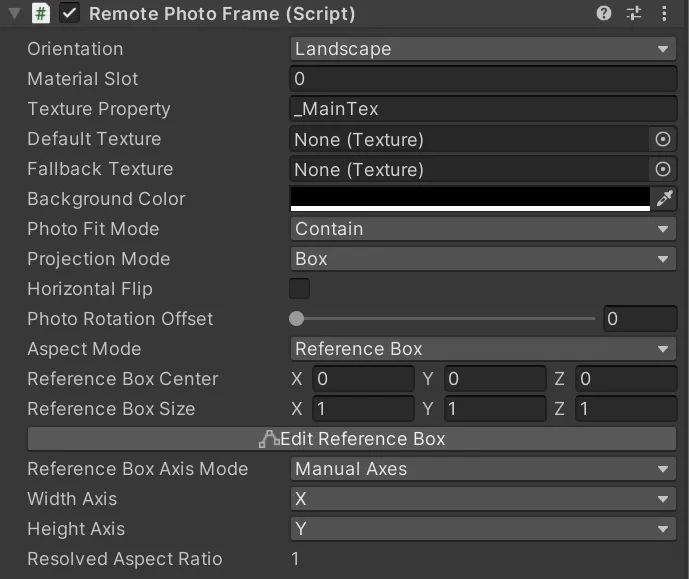
RemotePhotoFrame is used to configure a frame and adjust how images are displayed.
This component must be placed on the mesh object that displays the photo.
A UV-normalized single plane is recommended for the photo display mesh.
The photo display mesh must use the Shader included with this project.
| Parameter | Description |
|---|
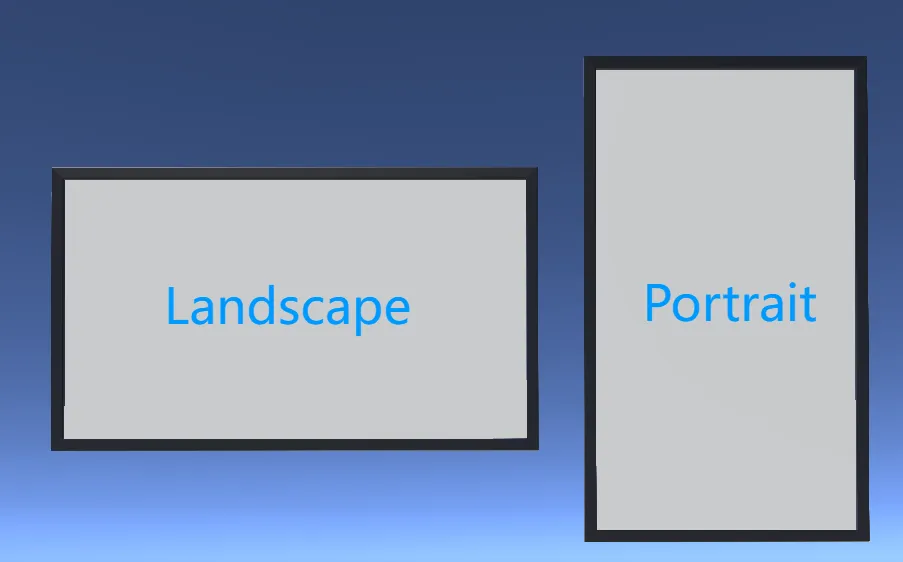
| Orientation | Sets the frame’s composition direction. Choose Landscape or Portrait based on the actual frame. |
| Material Slot | Selects the material slot that displays the image, counted from 0. Usually this does not need to change when there is only one material. |
| Texture Property | Name of the main texture slot in the material’s Shader. Because this project uses its own Shader, this usually stays as _MainTex. |
| Parameter | Description |
|---|
| Default Texture | Image shown before the remote link loads. Leaving this empty does not affect the system. |
| Fallback Texture | Image shown after a remote image fails to load. Leaving this empty does not affect the system. |
| Background Color | Background color used for the empty edges left by Contain, and for side fill in Box mode. |
| Parameter | Description |
|---|
| Photo Fit Mode | Provides common image fitting modes. |
| Projection Mode | Selects how the photo texture is projected. |
| Horizontal Flip | Sometimes Box projection appears horizontally mirrored. Enable this option to fix it. |
| Photo Rotation Offset | Adds an extra rotation before the photo is finally displayed. Usually keep this at 0 unless you need to fix an issue or create a special effect. |
| Option | Description |
|---|
| Crop | Crops the parts outside the frame without changing the remaining image ratio. |
| Contain | Scales the image so the whole image fits inside the frame, leaving empty edges. |
| Stretch | Ignores image ratio and stretches the image to fill the frame. |
| Tile | Keeps the original image size and repeats the pattern inside the frame. |
| Option | Description |
|---|
| Mesh UV | Suitable for a single-plane mesh. A single-plane photo display mesh is recommended for this mode. |
| Box | Suitable for a cube mesh. This mode detects the cube dimensions, discards the shortest side, and uses the remaining two dimensions to build the projection plane. In practice, shape the photo mesh into a flat frame-like cube. |
Other geometry types have not been tested. Use only a single plane or a six-sided cube mesh.
| Parameter | Description |
|---|
| Aspect Mode | Switches how the image display ratio is calculated. |
| Reference Box Axis Mode | In Reference Box mode, selects how the reference box is used to calculate the ratio. |
| Resolved Aspect Ratio | Shows the final ratio being applied. |
| Option | Description |
|---|
| Manual | Forces the ratio entered in Manual Aspect Ratio. Use this only when you know exactly what you need. |
| Auto | Calculates the ratio from the mesh bounds. Usually recommended. |
| Reference Box | Provides a box edited like a BoxCollider. Wrap this box around your frame. |
| Option | Description |
|---|
| Auto | Discards the shortest side, like cube projection, and calculates the ratio from the remaining two sides. |
| Manual Axes | Manually selects which two axes are used to calculate the ratio. |